N8N WorkShop - Day 01
Workflow Flow
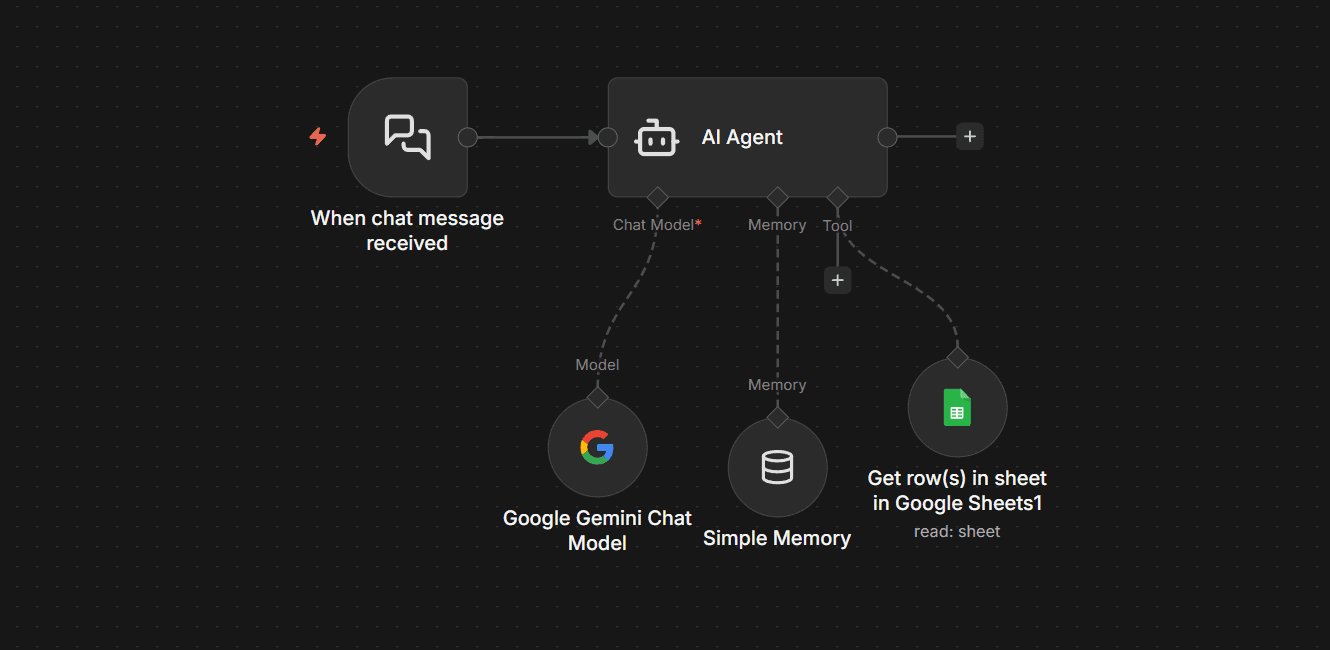
Setup & APIs Required
Objectives
This automation lets users chat with a Google Sheet in natural language. Instead of manually checking rows, the AI reads the sheet, analyzes the data, and gives clear answers with numbers.
N8N Installation & Setup
Learn how to setup N8N and configure the basic settings
Understanding the Interface
Navigate the N8N editor, understand nodes, connections, and the workflow canvas
Your First Workflow
Create a simple automation workflow from start to finish
Basic Node Types
Understand trigger nodes, regular nodes, and how data flows between them
Testing & Debugging
Learn how to test workflows and debug common issues
Day 01 Workflow Breakdown
Step 1: When Chat Message Received
Type: Chat Trigger
Purpose: Starts the workflow when a user sends a message.
Step 2: AI Agent Processing
Purpose: Main brain of the workflow.
System Prompt Used- Behaves like a data analyst
- Reads Google Sheet data when needed
- Answers only from returned data
- Avoids hallucinations
Step 3: Simple Memory
Purpose: Stores recent chat context.
Config- Session Type: Custom Key
- Session Key: From chat session ID
- Context Window: 10
Step 4: Google Sheets Tool
Purpose: Lets the AI agent read all rows from the sheet.
Config- Spreadsheet: NexScope Pricing
- Sheet: Sheet1
- Mode: Returns all rows + all columns
- Credential: Google Sheets OAuth2
Step 5: Google Gemini Chat Model
Purpose: LLM used by the AI Agent
Config- Temperature: 0.4
- Credential: Gemini API Key